
Optimizing Galaxy AI for Enhanced User Experience on Samsung Galaxy Smartphones
The integration of AI technology into smartphones, particularly Samsung Galaxy devices, has transformed how users interact with their mobile environments. In 2026, Samsung’s latest Galaxy lineup, including models like the Galaxy S24, Fold 6, and S25, incorporates a vast array of AI-powered smart features designed to boost productivity, enhance multimedia experiences, and facilitate everyday tasks. However, not every user wants AI to permeate every aspect of their phone usage. Mastering AI means understanding how to selectively activate or disable these smart features to tailor the smartphone experience precisely to your preferences.
Samsung’s One UI 6.1.1 software lays the foundation for its Galaxy AI capabilities, providing a user-friendly pathway to manage these intelligent functionalities without getting lost in labyrinthine settings menus. Users can easily toggle AI-powered services on or off according to their specific needs, balancing convenience with privacy and performance. For instance, some Galaxy AI features offer cloud-based processing for faster, more accurate results, while a privacy-conscious toggle keeps data processing strictly on-device, limiting external data transfers.
Understanding which AI services are available and how they interact with your device’s core functionality is crucial. Smart features include, but are not limited to:
- Circle to Search: Allows users to capture parts of the screen and instantly search for related content online.
- Live Translate and Interpreter: Instantly translate text and conversations, ideal for travelers or multilingual communication.
- Note Assist and Transcript Assist: AI-enhanced tools that automatically organize, summarize, and transcribe notes to enhance productivity.
- Generative Edit and Sketch to Image: Creative AI tools for photo editing and image generation within the native Camera and Gallery apps.
By judiciously managing AI features, professionals in smart tourism, cultural mediation, and event organization can maintain fluid and efficient smartphone operations, ensuring smart features supplement rather than overcomplicate their workflow.
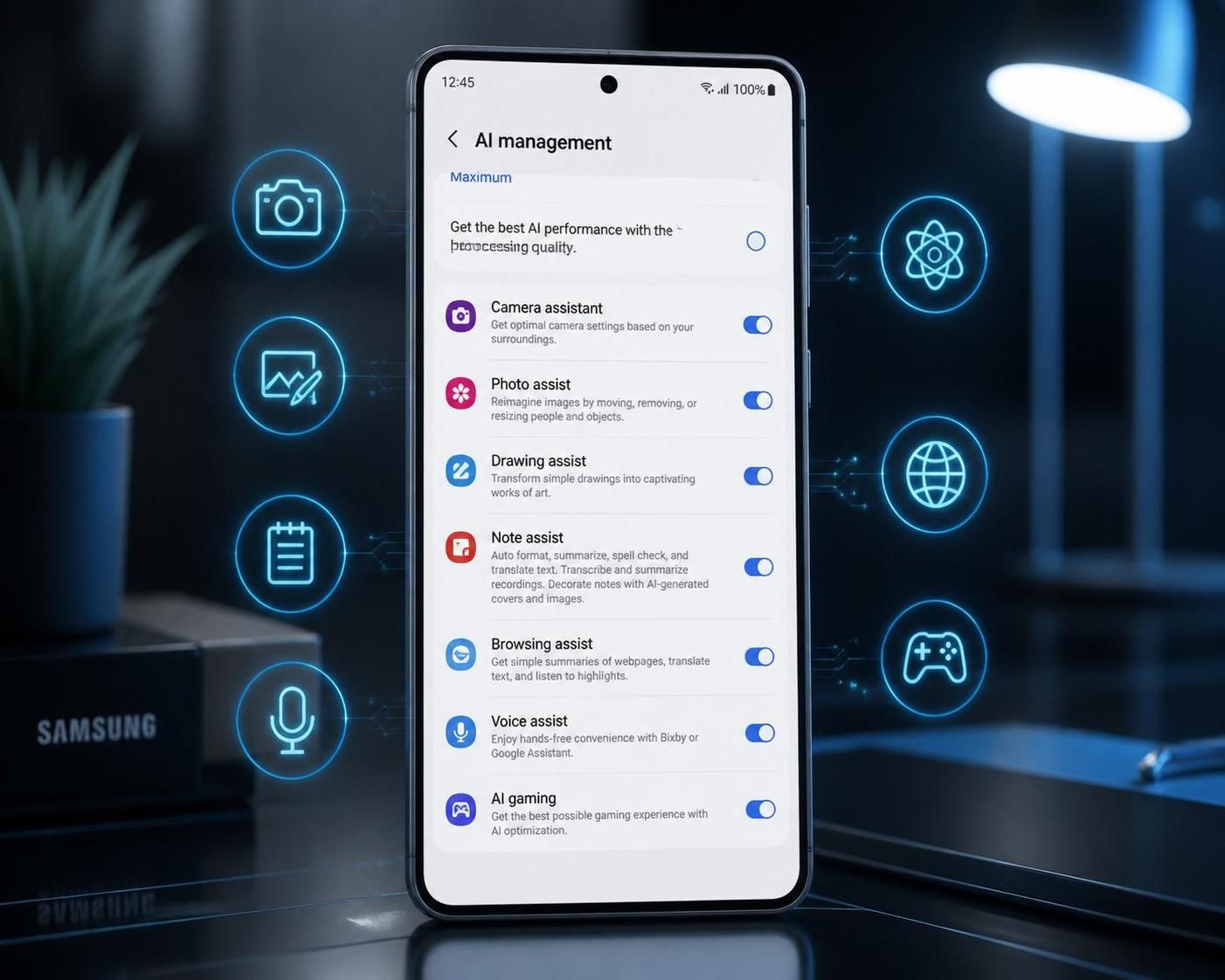
Step-by-Step Guide to Disabling or Customizing Galaxy AI Features
Mastering the AI on your Samsung Galaxy smartphone begins with pinpointing where and how to adjust these settings. Samsung’s user-centric design ensures that AI management is accessible and straightforward, helping users avoid overwhelming or unwanted smart features.
To disable or customize AI services, follow these steps:
- Navigate to your device’s Settings menu.
- Select Galaxy AI, prominently listed under device management options.
- Review the list of active AI-powered services.
- Toggle individual AI services on or off based on your usage preferences.
- Utilize the privacy toggle at the bottom of the Galaxy AI screen to restrict cloud data processing, retaining AI capabilities solely on your device and enhancing data security.
This granular control empowers users to enjoy AI-driven solutions without compromising their workflow or privacy. For example, a guide or museum professional relying on Samsung Notes’ AI-powered summarization can keep only Note Assist enabled while disabling AI-powered browsing assistance that may not be relevant.
More information on managing Galaxy AI features can be found on trusted resources that detail comprehensive AI guides. Users seeking in-depth explanations and updates on new AI implementations benefit from resources like the complete guide to Samsung AI features and the instructional tutorial on disabling AI on Samsung Galaxy phones.
This ability to selectively customize AI behavior aligns with professional demands for efficient smartphone management, making everyday tasks smoother and elevating the user experience beyond traditional smartphone operations.
Replacing Bixby: Streamlining Voice Assistant Preferences for Samsung Galaxy Users
Samsung’s AI ecosystem includes voice assistant technology, with Bixby occupying a key role. Yet, many users find Bixby less intuitive or functional compared to alternatives like Google Assistant. The good news for those mastering AI on Galaxy smartphones is Samsung’s straightforward approach to replacing Bixby with other voice assistants suited to your needs.
To switch from Bixby to a preferred assistant, typically Google Assistant, adhere to this process:
- Open Settings on your Galaxy device.
- Scroll to and select Apps.
- Tap on Default apps.
- Choose Digital assistant app.
- Select Google or another installed voice assistant.
Once set, your device will activate the chosen assistant for voice commands, offering a more streamlined and personalized interaction. Notably, the Galaxy S26 has deprecated Bixby in favor of newer assistant technologies. Advanced AI assistants from Google, expected to be integrated soon, will further enhance voice-based interactions by leveraging greater contextual understanding and responsiveness.
This flexibility supports professionals who depend on voice controls for managing schedules, retrieving information hands-free, or navigating multilingual environments. It also ensures that the AI technology complements rather than complicates the smartphone usage experience.
For expanded insights into AI voice assistants on Samsung devices, consult analytical perspectives such as those found on advanced voice AI technology sites or tools focused on voice assistant applications in smart note-taking.
Harnessing Samsung Galaxy AI to Boost Productivity and Organization
Samsung Galaxy’s AI features extend significantly beyond simple convenience functions, offering users tangible productivity gains. The AI-driven Note Assist, for instance, intelligently summarizes lengthy notes, extracts action points, and categorizes topics automatically, which is invaluable for professionals managing complex itineraries, tours, or cultural event content. Similarly, the Transcript Assist feature converts audio recordings into editable text, streamlining documentation.
These features are especially relevant for smart tourism operators and cultural mediators who must organize large volumes of information efficiently without compromising on quality or pace. With Galaxy AI, note consolidation and transcription happen in real time, enabling faster dissemination of information to team members and clients alike.
The generative AI tools for photo editing such as Generative Edit and Sketch to Image unlock creative potential without requiring external applications, simplifying content creation highly useful for travel guides or event marketers producing visually attractive materials rapidly.
| 📱Galaxy AI Feature | 🔧Main Function | 🎯Benefit for Professionals |
|---|---|---|
| Note Assist | Automatic note summarization and organization | Speeds up content management and improves clarity of information |
| Transcript Assist | Audio to editable text conversion | Facilitates faster report generation and transcription of conversations |
| Generative Edit | AI-powered photo and image editing | Enables creative visual enhancement within the device |
| Circle to Search | Contextual image and text search | Improves research speed by easily finding linked resources |
Managing these AI tools effectively not only streamlines routine activities but also promotes a better work-life balance by reducing time spent on tedious tasks. To master these capabilities, professionals can explore detailed guides on how to become more organized through Galaxy AI, such as those shared on Tom’s Guide.
Balancing Privacy and Smart Features: Configuring AI Settings for Data Protection
Incorporating AI into smartphones inevitably raises questions regarding data privacy and security. Samsung has addressed this concern by offering transparent options to control how AI processes user data. A dedicated toggle within the Galaxy AI settings allows users to limit or prevent data from being sent to external cloud servers, ensuring that AI computation happens locally on the device.
This feature is particularly relevant for those who handle sensitive information daily and require assurance that their data isn’t exposed to unnecessary cloud processing. While processing AI tasks locally may slightly reduce speed or the sophistication of results, it represents a conscious trade-off prioritizing privacy over maximum functionality.
Additionally, users have the option to deactivate certain AI features that rely heavily on internet connectivity, choosing instead to keep only those that operate offline. This balance is key for cultural institutions and smart tourism professionals who often work in regions with restrictive internet access or heightened data protection requirements.
Understanding these privacy controls is essential for modern smartphone management, reflecting a global trend towards responsible AI usage. For those seeking further clarity on this subject, Samsung’s official support resources provide in-depth explanations on AI privacy settings and their implications.
- 🔐 Limit cloud data processing to enhance security.
- 📶 Disable online-dependent AI features if network reliability is a concern.
- 🛠 Customize AI-enabled apps to restrict data sharing selectively.
- 💡 Keep only productivity-relevant AI functions active for workflow efficiency.
- 🕵️♂️ Regularly review app permissions linked to AI to maintain control.
How can I quickly disable AI features on my Samsung Galaxy device?
Access the Settings app, navigate to Galaxy AI, then toggle off individual AI services or completely disable AI using the privacy option to disable cloud-based processing.
Is it possible to replace Bixby with another voice assistant on Galaxy phones?
Yes, Samsung allows you to replace Bixby with Google Assistant or other compatible voice assistants through Settings > Apps > Default apps > Digital assistant app.
What are some practical uses of Galaxy AI for tourism professionals?
Galaxy AI helps professionals by summarizing notes, transcribing audio, and providing translation services in real time, which improves communication and information management during tours or events.
Does limiting AI cloud processing affect feature performance?
Limiting cloud processing enhances privacy but may reduce some AI features’ responsiveness or accuracy as computations are handled locally rather than on powerful servers.
Where can I learn more about managing AI on Samsung Galaxy smartphones?
Reliable and detailed resources include expert articles and official Samsung support pages which provide step-by-step guides and updates on Galaxy AI capabilities.
